 Access Procedure with MFA Multi-Factor Authentication for the InfoCert Customer Care Portal
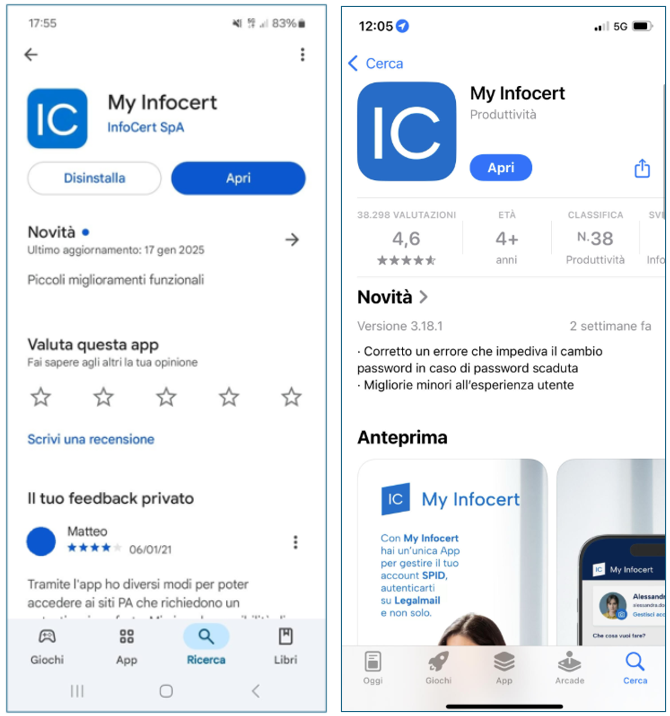
My Infocert is the InfoCert mobile App that enables multi-factor authentication (MFA) on the InfoCert Customer Care Portal.
The app is available for free for the following operating systems:
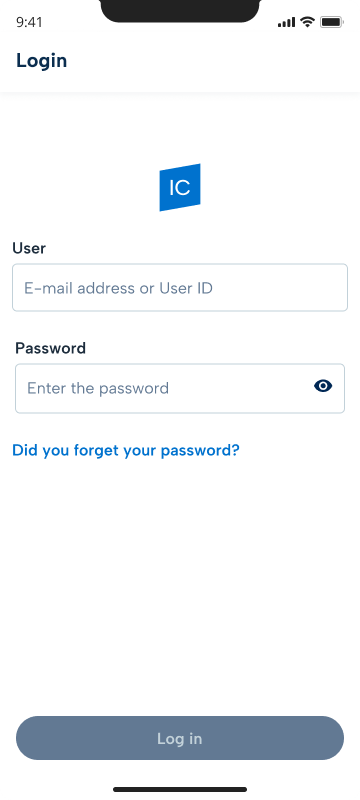
Enter your InfoCert account credentials:
then, click on "Login".
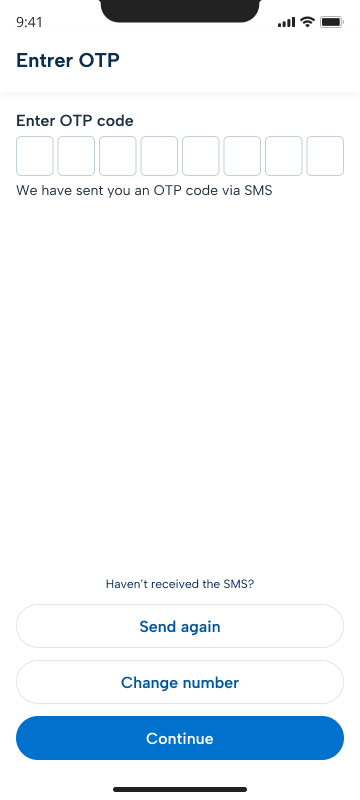
After routine checks, the app sends an OTP code via SMS to the Mobile Phone linked to yourInfoCert account. Enter it in the appropriate fields, then click on the "Continue" button.
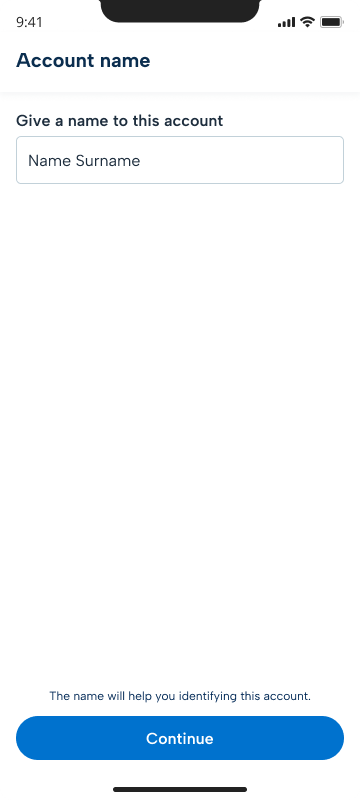
Assign the "Account Name" with which you want to store the InfoCert account within the app.
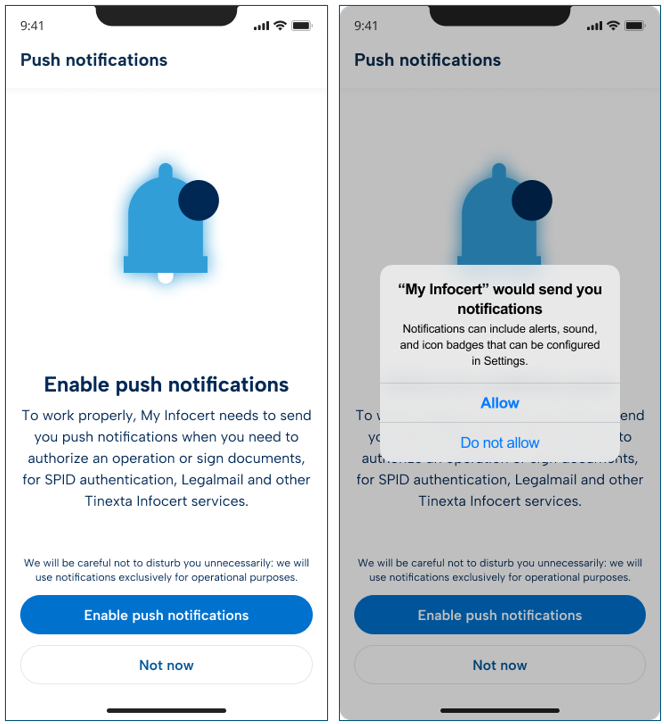
For My Infocert to function correctly, it needs to send you "push notifications" when you areauthenticating on the InfoCert Customer Care Portal.
If you don't want to set this up, select the Later option.
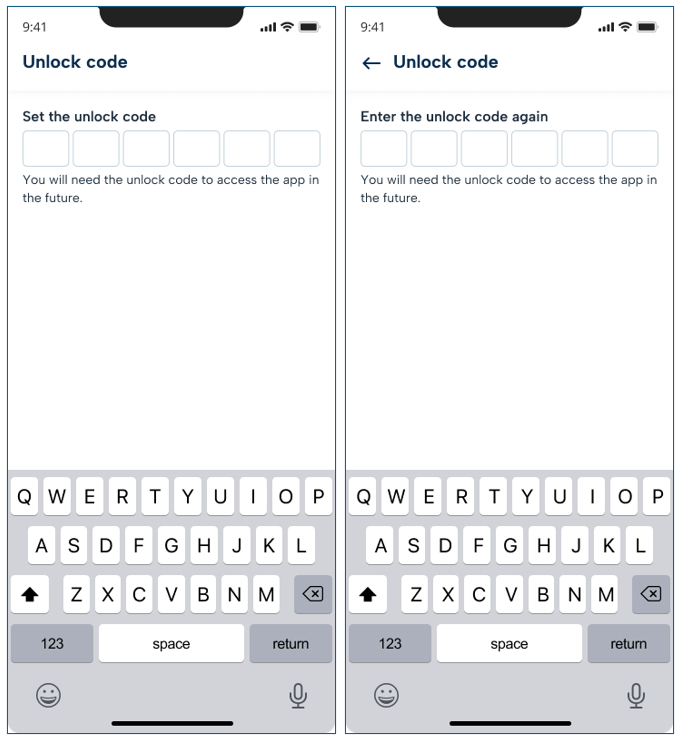
At this point, you will be asked to choose a "unlock code" that you will need to access the app in thefuture.
Click on "Continue".
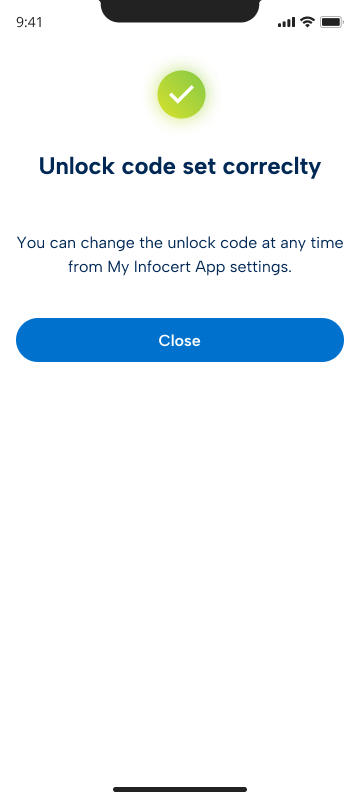
The App will confirm the successful setup of the unlock code.
Click on the "Close" button.
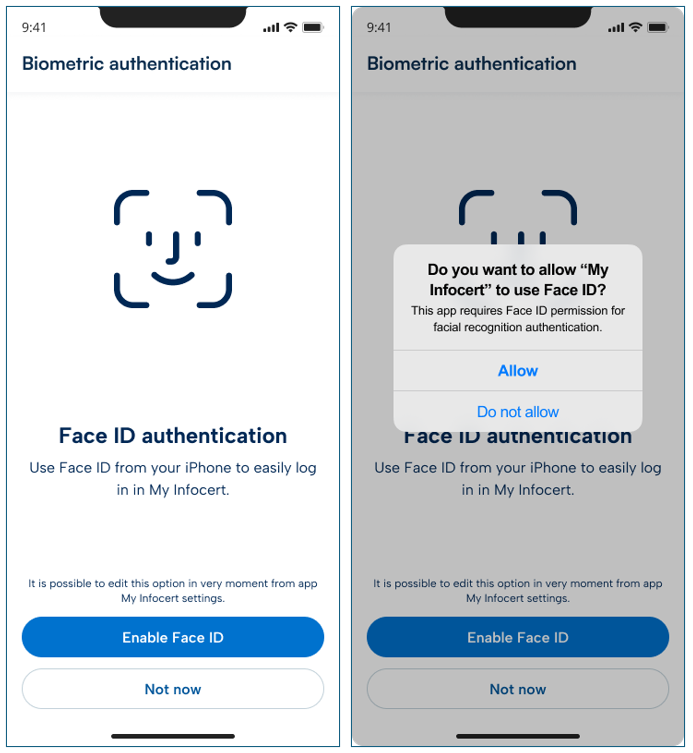
If your device allows it, as an alternative to the unlock code, you can set up Face (or Touch) ID, toaccess the app more quickly.
If you don't want to set this up, select the "Later" option.
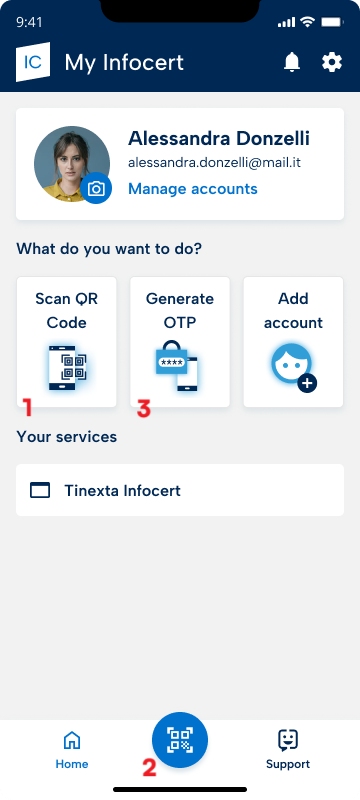
The app configuration is complete!On the app homepage, you will find the main buttons to log in to the InfoCert Customer Care Portal:
After clicking on the Login button of the InfoCert Customer Care Portal, you will reach this page:
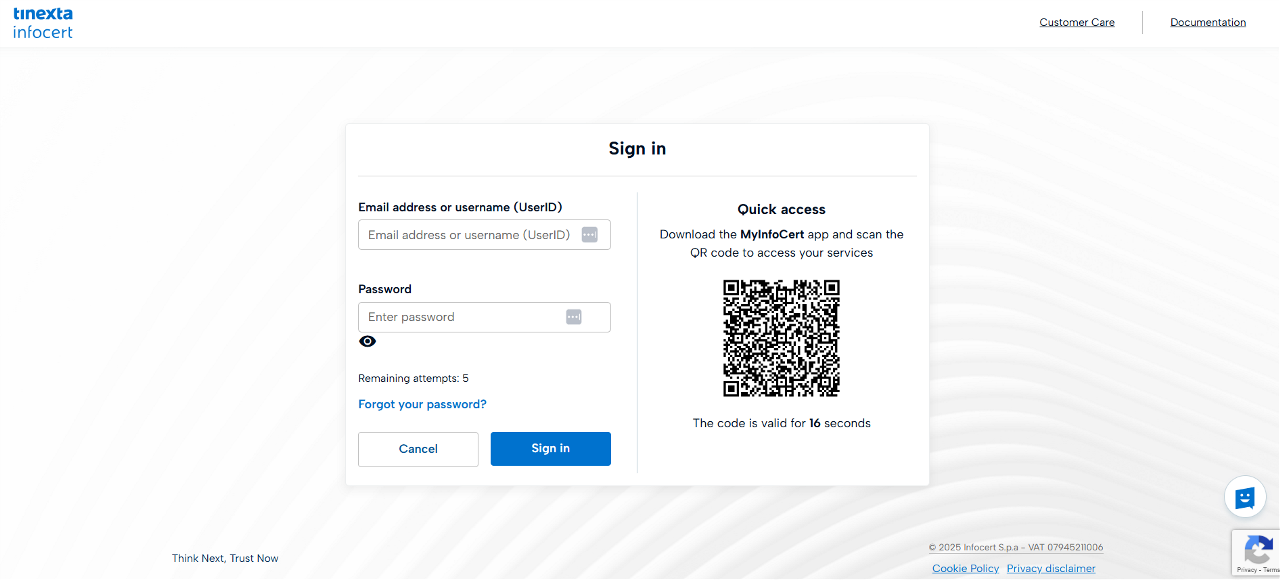
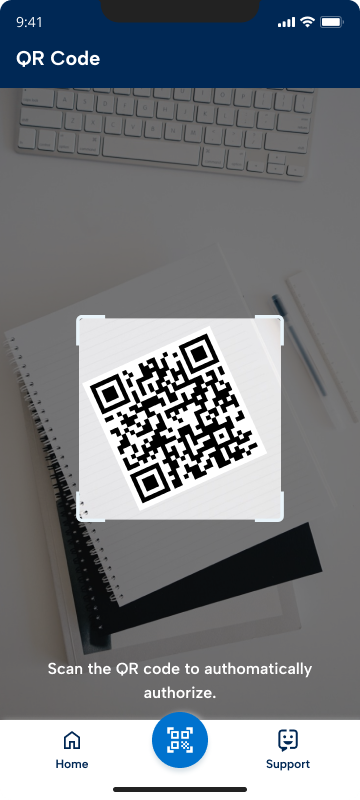
Through the "passwordless" mode, you can scan the QR Code with the app My Infocert and log in to the Portal in just a few moments.
If you prefer to enter your credentials manually, type your userID/email and password in the indicated fields, then click on "Login".
After entering your credentials, you will be redirected to this page. Here you will be asked to chooseone of the three (3) available options:
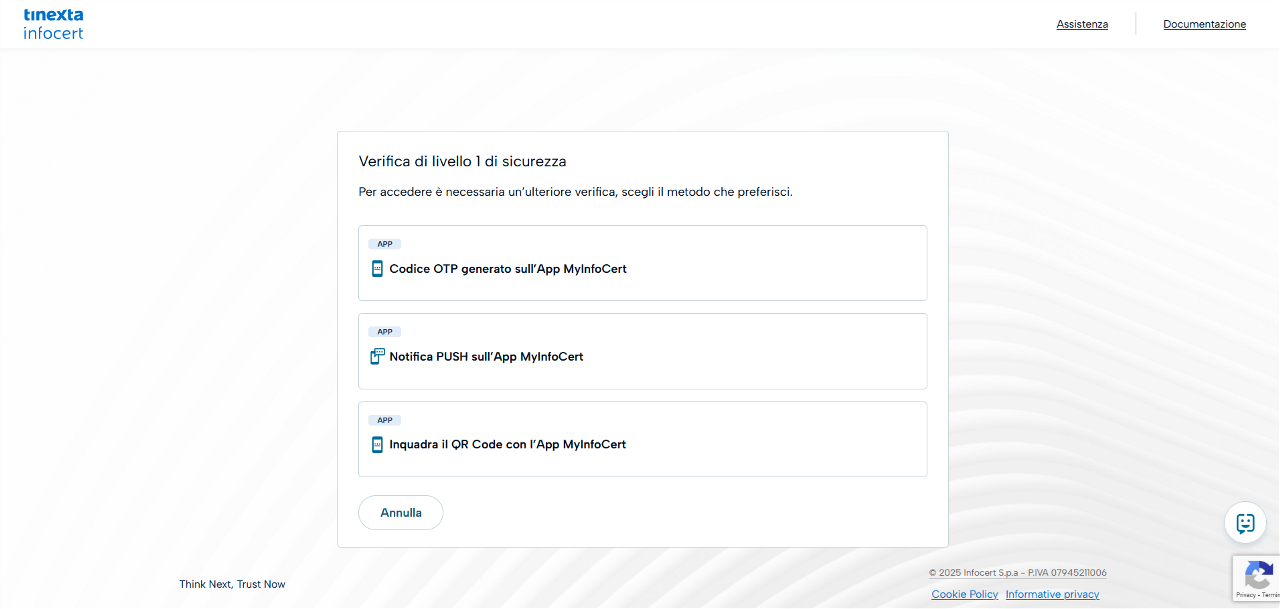
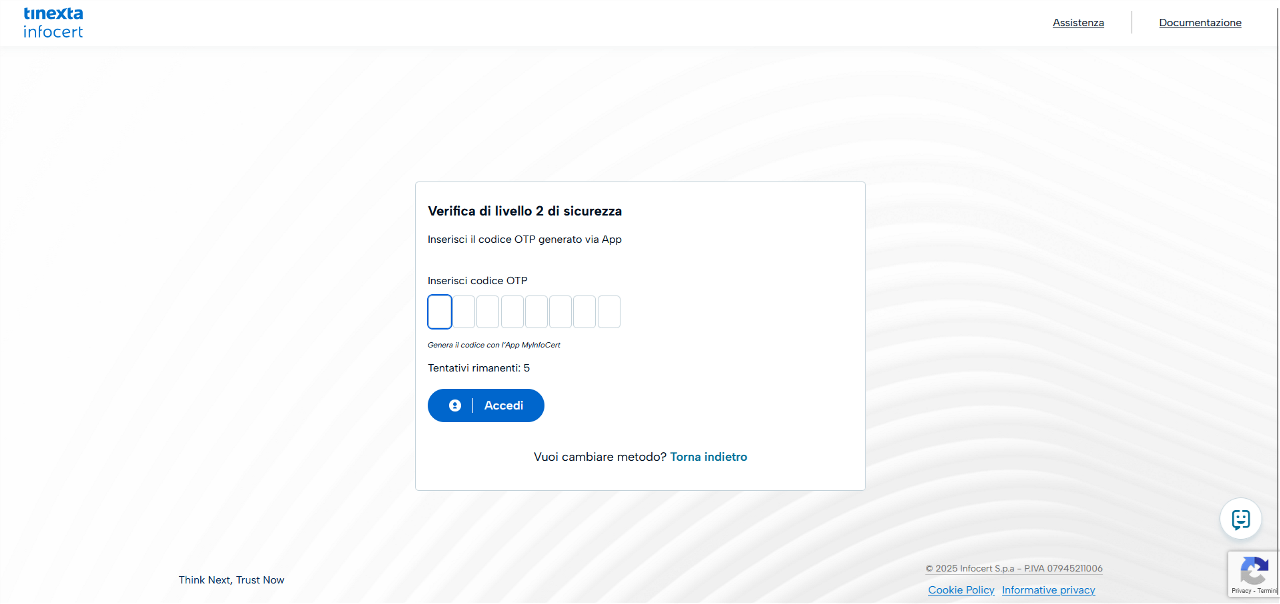
Selecting the first method, you will need to generate an OTP Code from the My Infocert app...
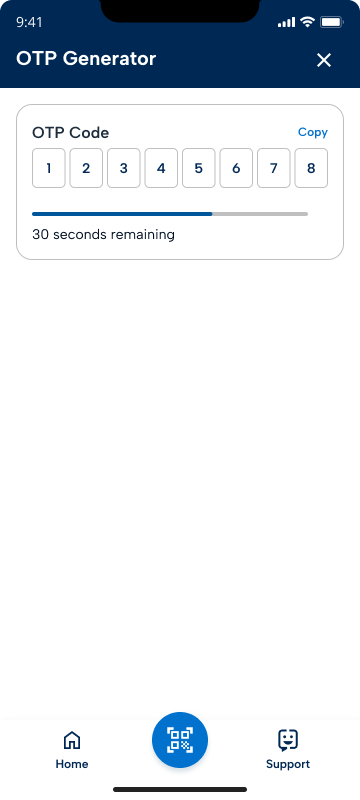
...and enter it in the appropriate field on the screen.
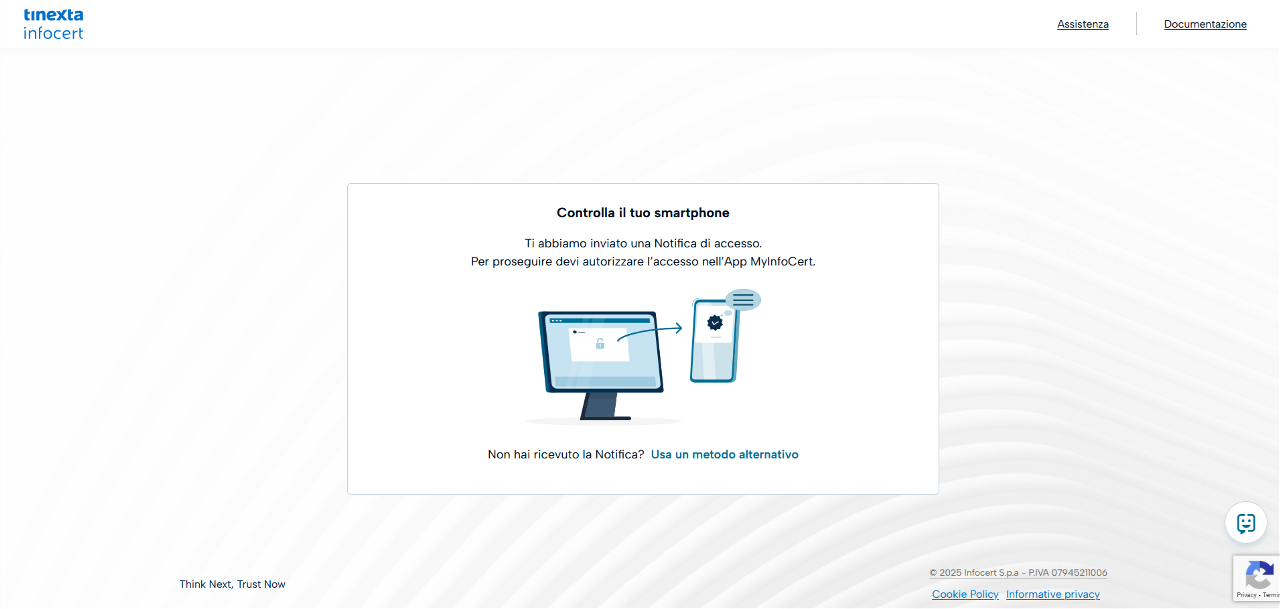
Selecting the second option, the system will send an access notification to your Mobile Phone.
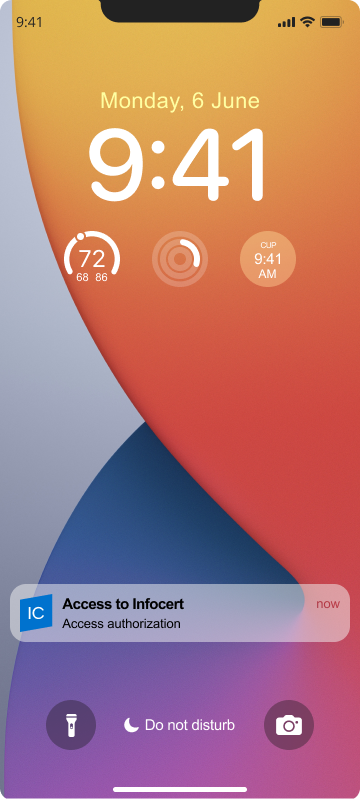
To proceed, you must click on the notification and authorize access.
Finally, if you select the last available option, you will be asked to use the QR Code scanning function through the app My Infocert.
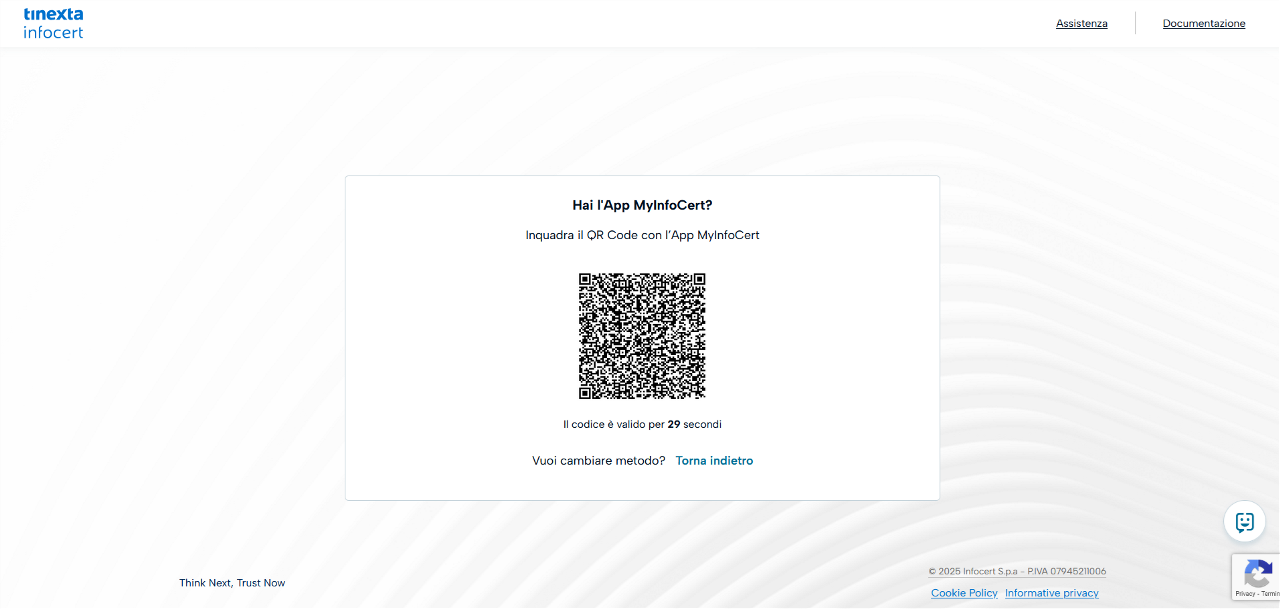
By scanning the QR Code with the app, you complete the Login.